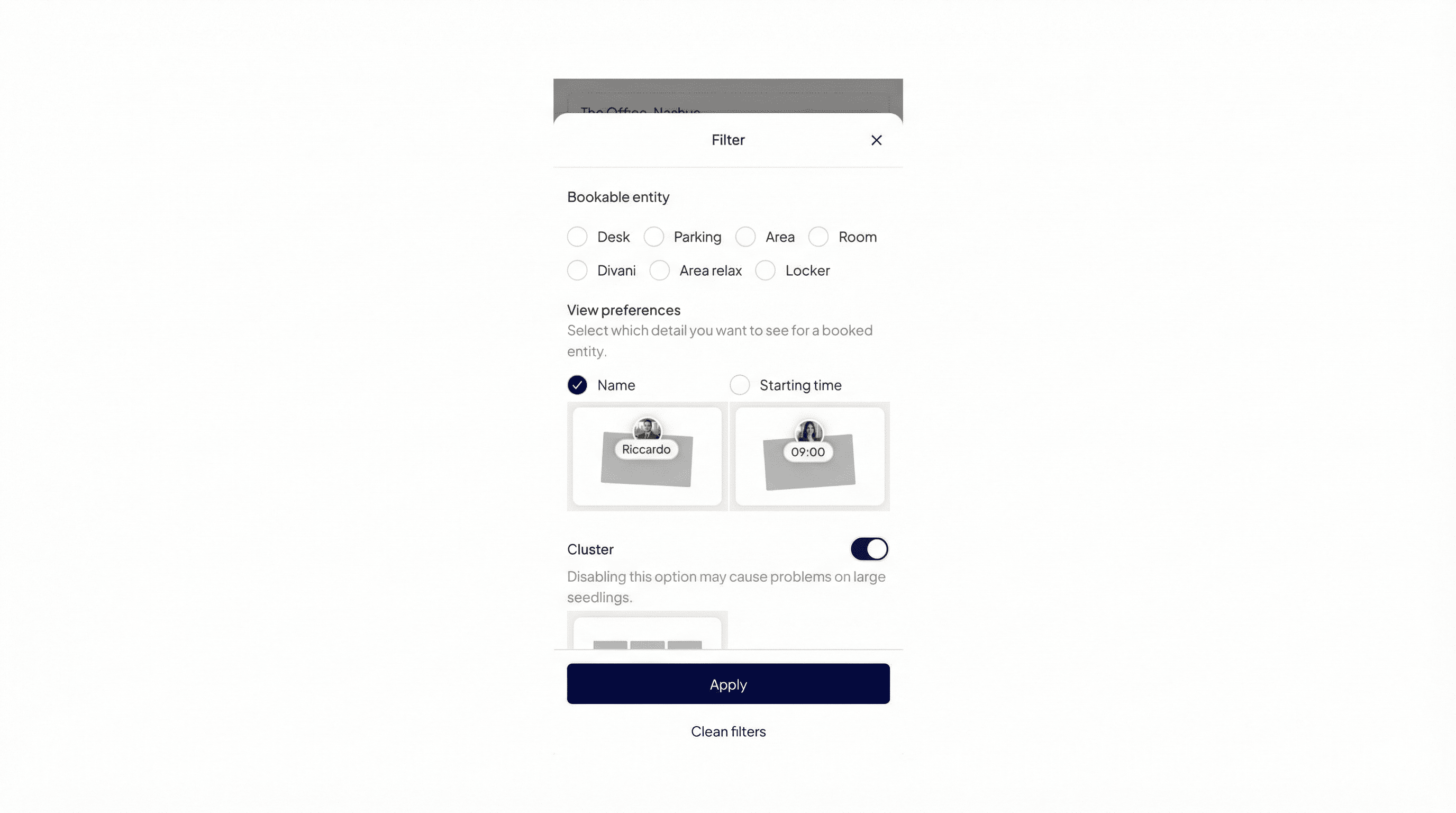
To customize the map view and quickly find the resource you need or see which colleagues have booked in the office, you can use the Filters in the Office section.
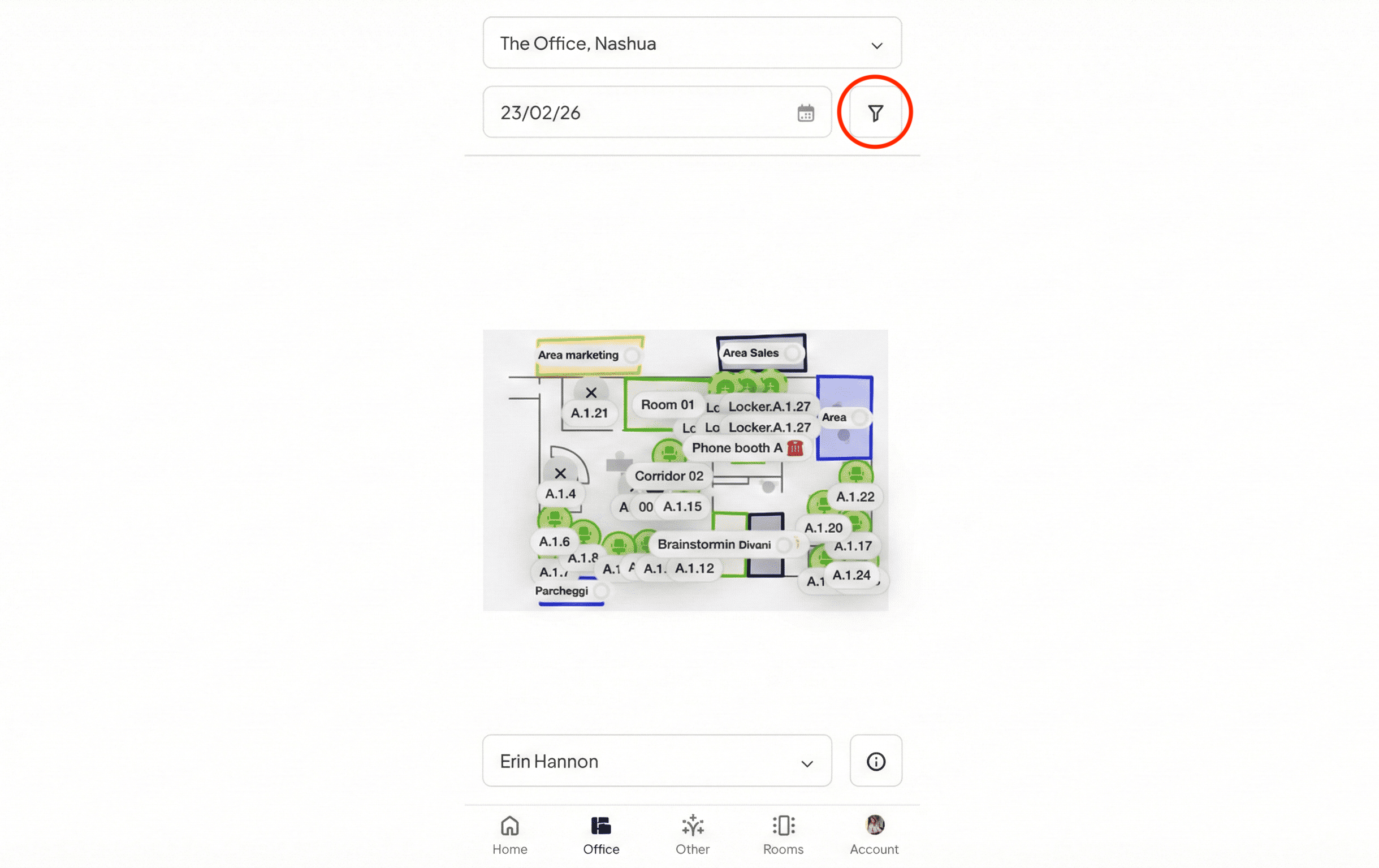
1) Choose which entity you want to book
Under Bookable entities, select the type of resource you want to book (e.g. workstation, parking space, meeting room, etc.) to display only that category on the map and make your search easier.
Services: within these categories you can also filter based on the specific features of the entity, such as the presence of a monitor, a keyboard, or an adjustable desk.
2) Choose the details you want to see for a booked entity
In View preferences you can customize the label that appears under each booked entity:
Name: shows the name of the colleague who has already occupied that resource.
Starting time: shows the time from which the resource will be occupied.
3) Manage the map's fluidity
Use the switch under Cluster to choose how to display the entities on the map:
Active (recommended): groups nearby workstations into a single circle (e.g. "4/6") to make the map cleaner and faster to load, especially in large offices. Just use the zoom to "open" the cluster and view individual resources.
Inactive: shows each individual resource separately, ideal for seeing the exact spatial arrangement of the entities.
Note: After selecting the desired filters, remember to click the blue Apply button at the bottom right. If you want to return to the default view, just click Clean filters.